
English
Pay for your purchases with a single tap — fast, convenient, and secure with Commercial Bank KSB cards.
Open or download the KSB Bank app
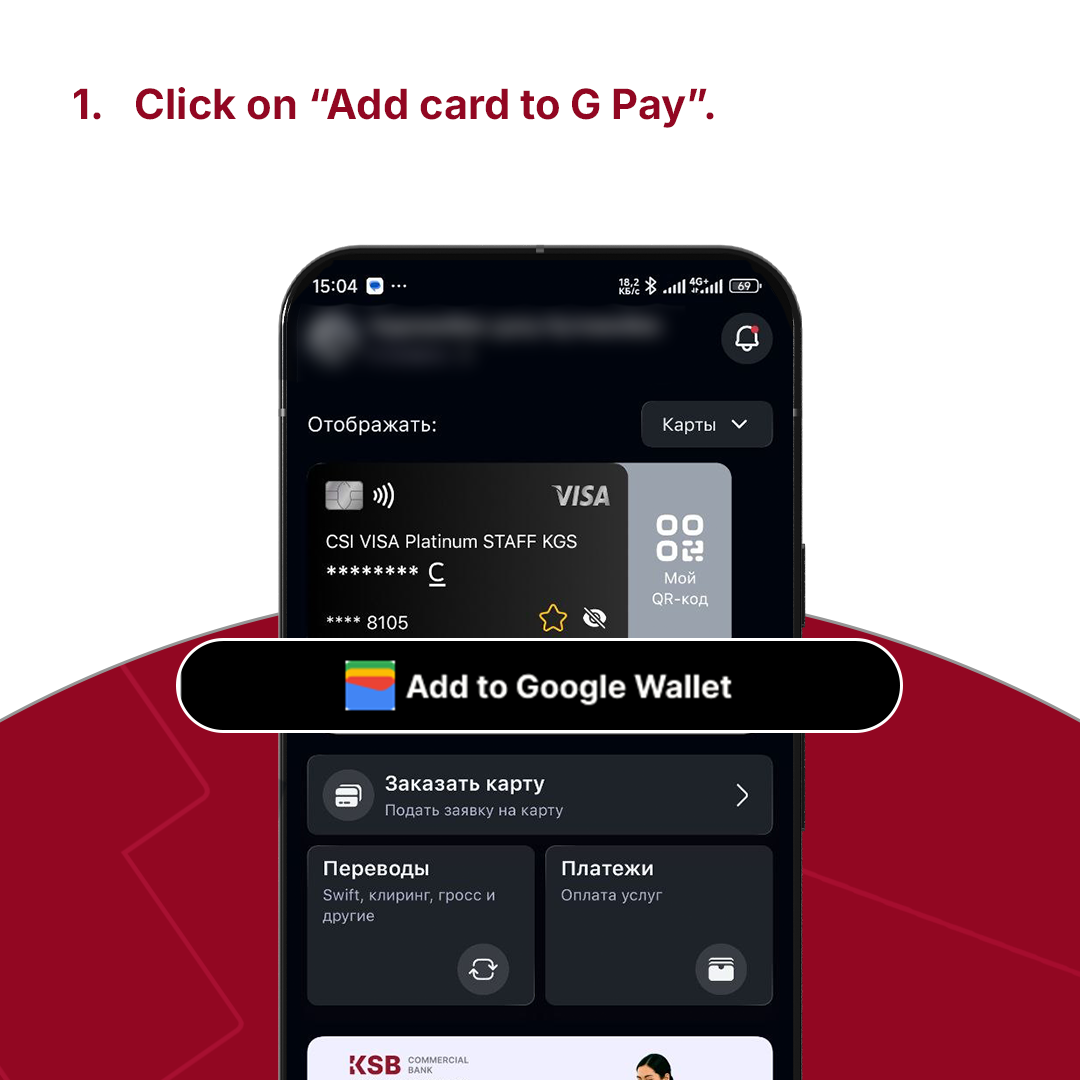
Select a card to add
Go to the Google Pay section
Tap the Add to GPay button
Google Pay will open or start downloading from the Play Store
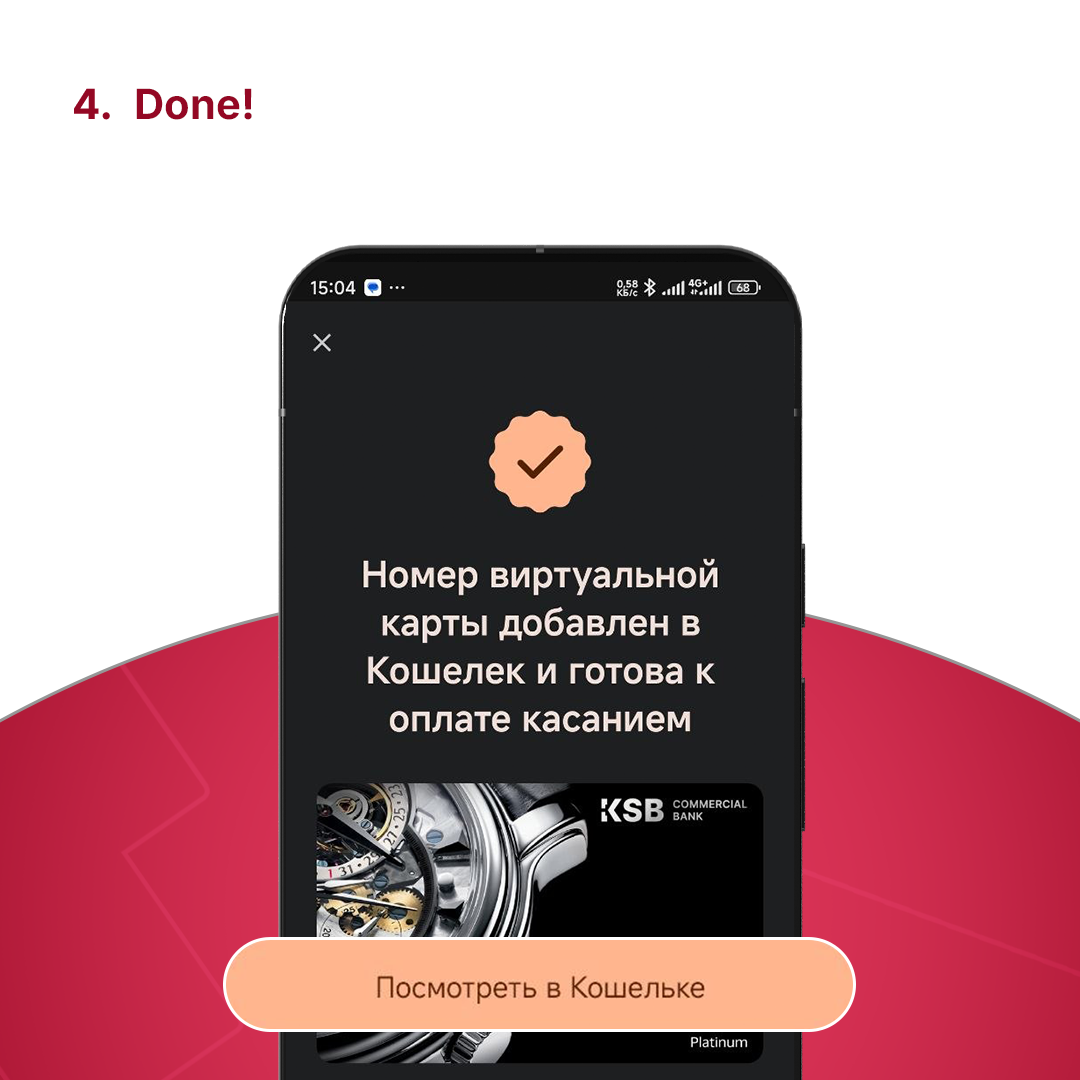
Done! You can now pay for purchases via Google Pay
Open or install the Google Pay app from the Play Store
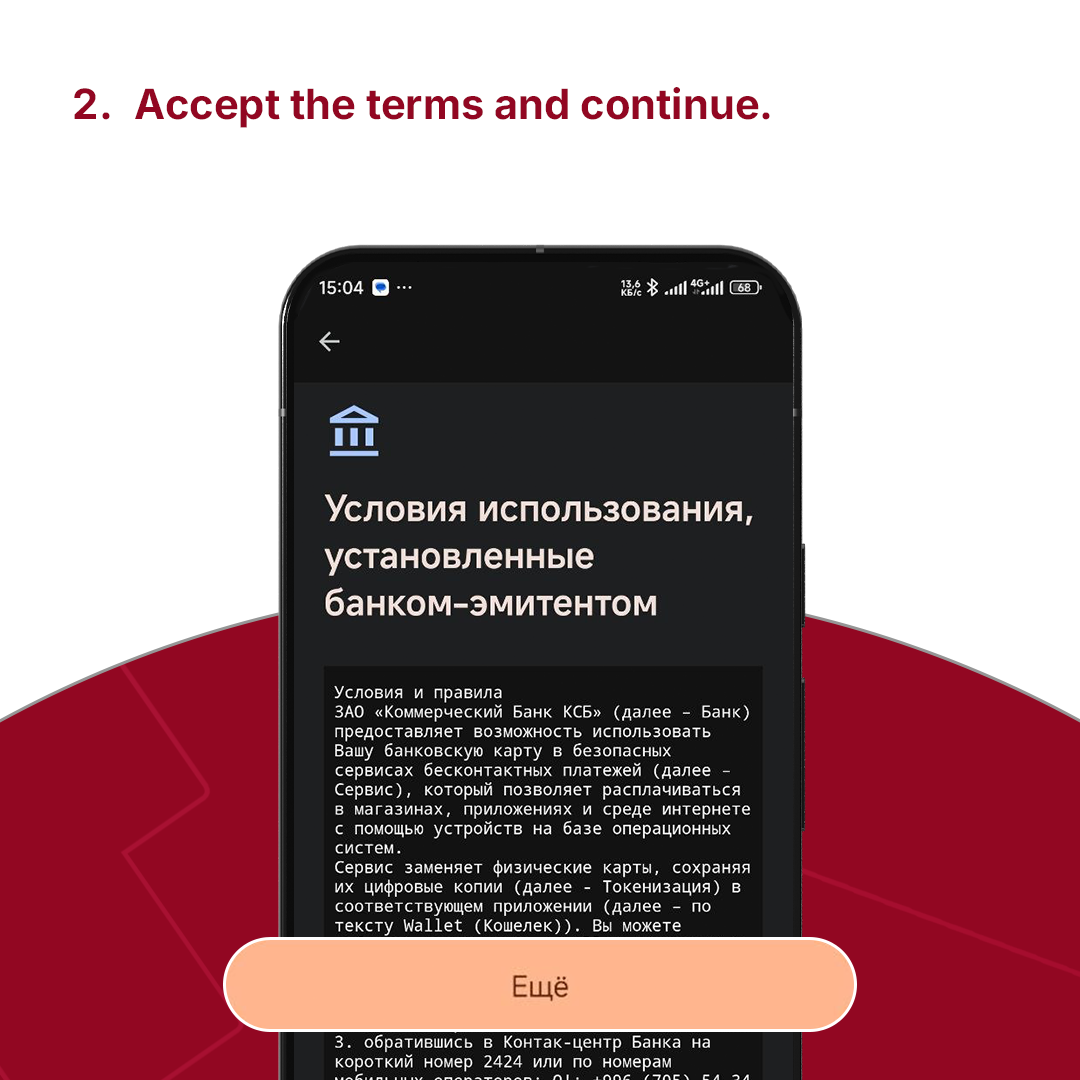
Tap “Add card” and select the “New card” option
Enter the KSB card number manually or scan it using your camera
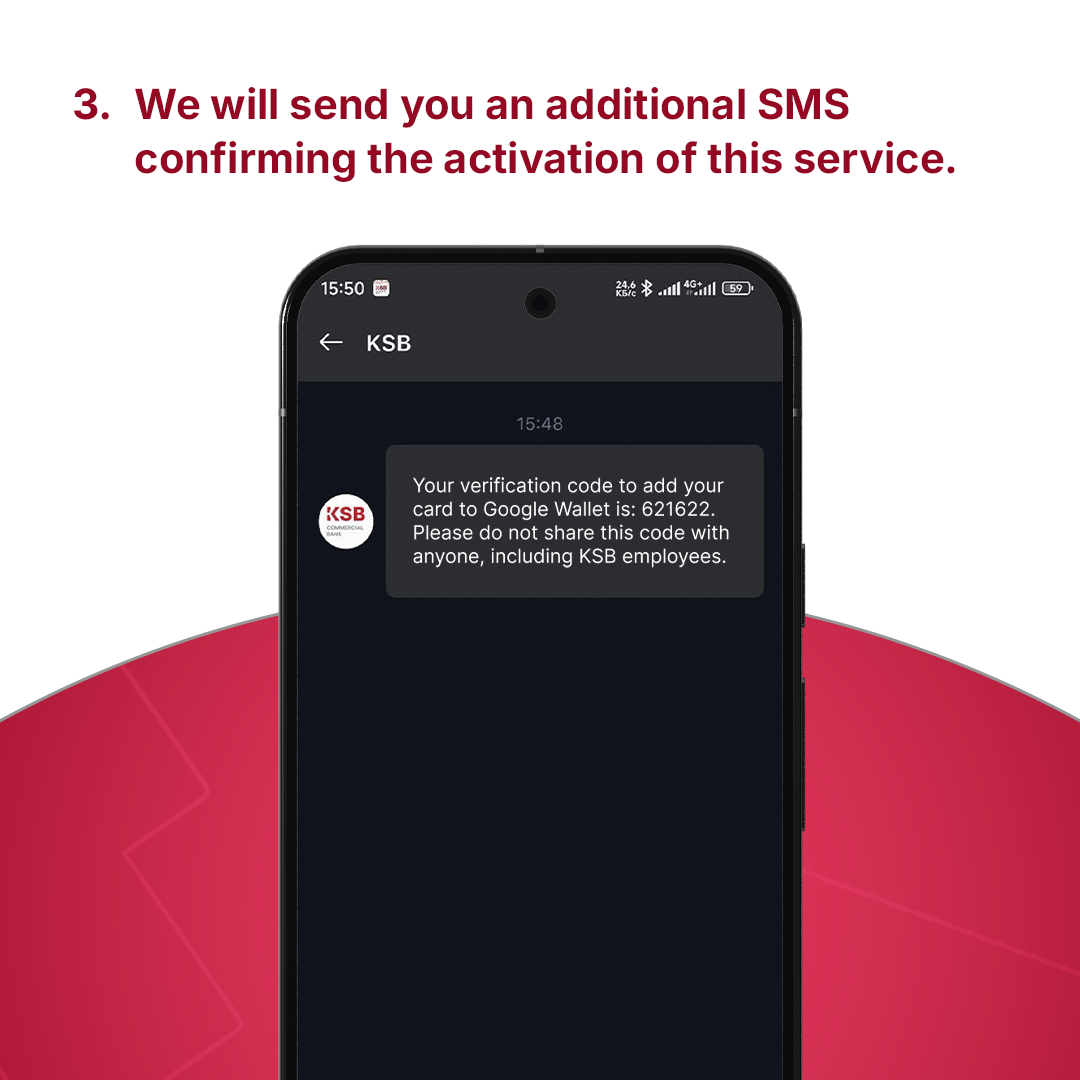
Confirm adding it with the SMS code from the bank
Done! The card has been added to Google Pay
Answers to frequently asked questions about the services of Commercial Bank KSB.
Google Pay is supported on devices running Android 9.0 or higher, as well as on select smartwatch models running Wear OS. Note: Make sure your device supports NFC and has an active internet connection.
To set up Google Pay, download and install the Google Pay app. Then, open the app, add your card by following the on-screen instructions, and verify it via SMS or email.
Google Pay utilizes multiple layers of security, including tokenization technology, which means your actual card details are never shared during a transaction. Additionally, you must unlock your device to authorize and confirm payments.
Google Pay is a mobile payment service that allows you to pay for purchases using your smartphone, tablet, or smartwatch. You can add a card issued by "Commercial Bank KSB" to Google Pay and use your device to make contactless payments.
To add a card, open the Google Pay app, select the "Add a card" option, and enter your card number, expiration date, and other required details. Follow the prompts to verify your card and start using it for payments.
Yes, Google Pay can be used in any country where contactless Visa card payments are supported. Just look for the contactless symbol on the payment terminal.
Yes. For Google Pay to work correctly, the device region must be set to "Kyrgyzstan" — only then is the service supported. (Settings → System → Languages & region).
Управлять финансами ещё удобнее

Наведите камеру, чтобы скачать мобильное приложение KSB Online